Xbox & PC Game Pass for Under Half a Dollar — The Minecraft Filter Trick
Published May 18, 2026 — By HabibiAccounts Team — 7 min read
Yes — real Xbox Game Pass and PC Game Pass for under half a dollar. Not a trial, not a coupon: a full Microsoft account with an active Game Pass subscription, sitting quietly inside the Minecraft category. Open the filter, tap Game Pass, sort by Cheapest, and the deals practically fall into your lap. Here is the exact playbook.
The Deal in One Line
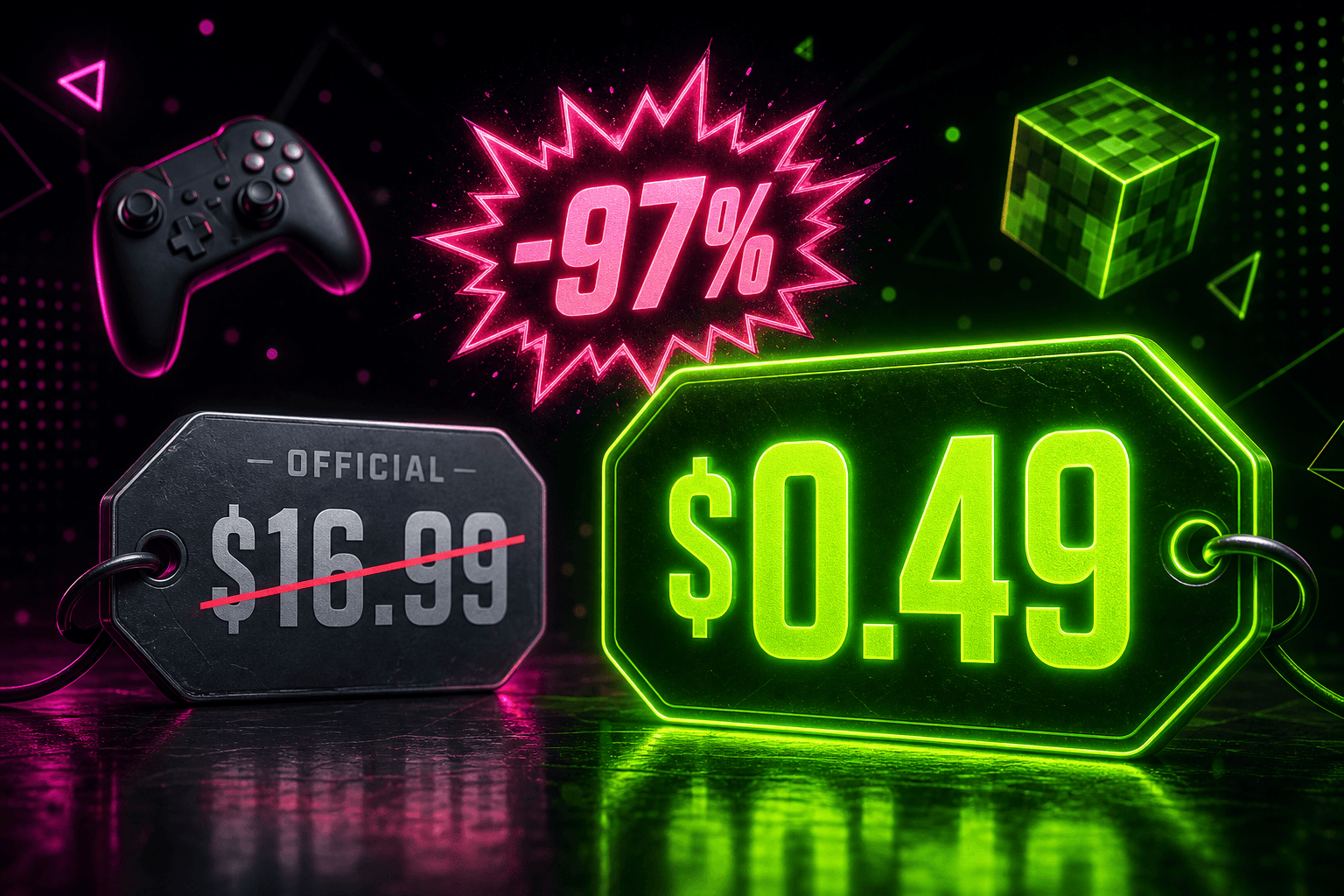
We brought it to you — Game Pass for cheaper than half a dollar. Microsoft folded Minecraft into the Xbox universe years ago: same account, same login. Game Pass Ultimate already includes Minecraft, so a lot of Microsoft accounts that carry an active Game Pass sub also carry Minecraft. On our marketplace those accounts get listed under the Minecraft category.
Translation: the cheapest road to Game Pass runs straight through Minecraft.
Why under $0.50? Same logic as every account here: regional pricing, seller competition, and verification risk all get baked into the price. A subscription that officially costs $16.99/month can land here for the price of a stick of gum.
The Trick, Step by Step
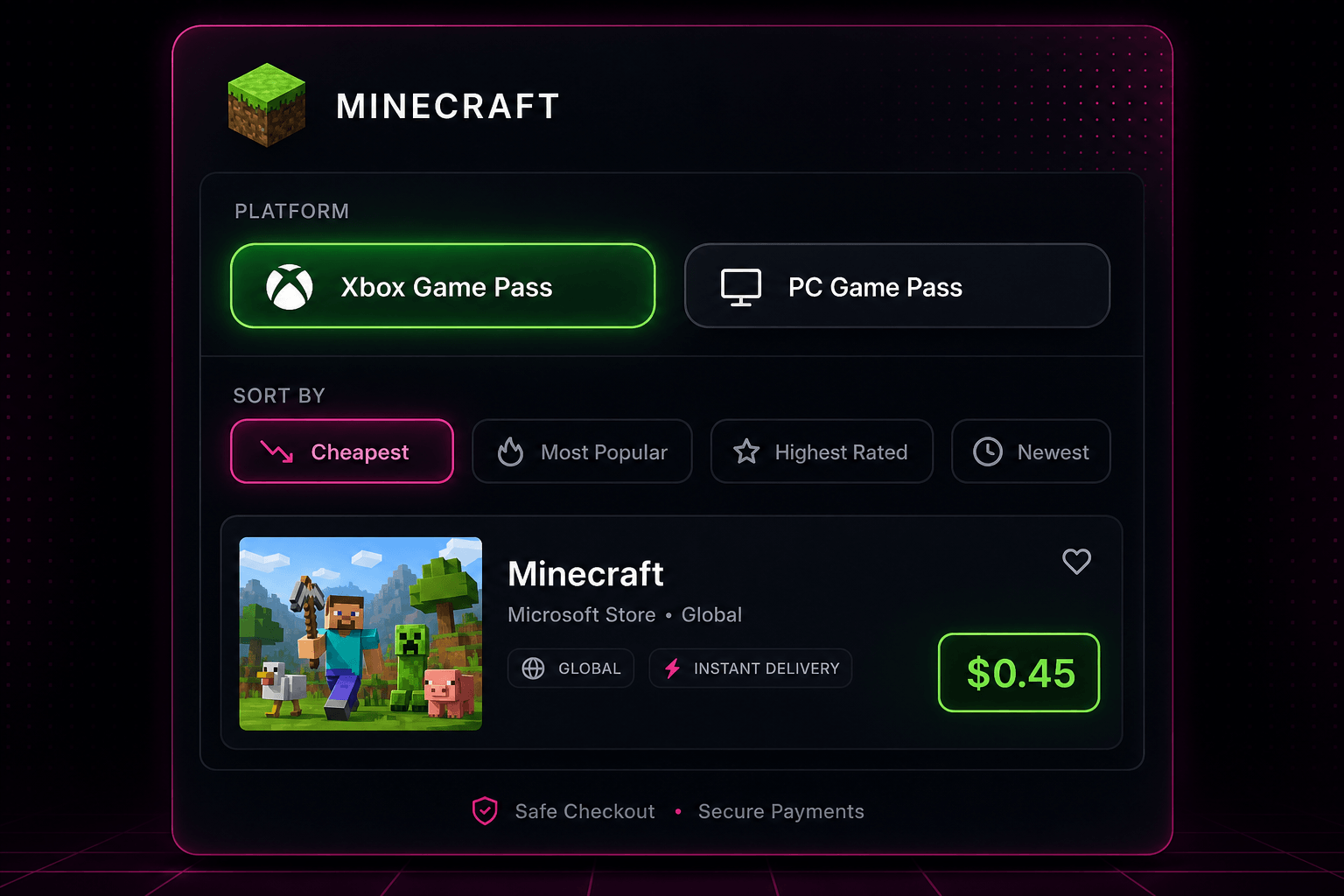
- Open the Minecraft category. Head to the Minecraft listings — this is where the Game Pass accounts live.
- Switch on the Game Pass filter. In the filter bar tap Xbox Game Pass (or PC Game Pass). Now you only see accounts that actually carry a Game Pass subscription.
- Sort by Cheapest. Open the sort options and pick Cheapest. The lowest-priced Game Pass accounts jump straight to the top.
- Grab the best one. The under-$0.50 Game Pass deals sit right at the top of the list. Check the details, then buy.
Xbox Game Pass or PC Game Pass?
Two buttons, two libraries. Pick the one that matches where you play:
- Xbox Game Pass: for console players. Hundreds of console games, day-one releases, and cloud gaming on the go.
- PC Game Pass: for PC players. A massive PC library through the app, plus EA Play on most plans.
Not sure? If the listing says Ultimate, you basically get both worlds — console, PC, and cloud — on a single subscription.
What You Actually Get
- An active Game Pass subscription (Xbox, PC, or Ultimate depending on the listing).
- Hundreds of games to install and play immediately — no buying titles one by one.
- Minecraft on the same account (Java + Bedrock on most).
- On Ultimate listings: EA Play and cloud gaming too.
Before you pay, check the listing for the remaining subscription time and the account region — that is what separates a great deal from a so-so one.
Buy It Safe — 30-Second Checklist
- Last seen: prefer green-glow accounts (long inactivity) — they are the safest.
- Email access: a native / changeable email beats a temp email every time.
- Right after delivery: log in, change the password, change the email, and enable 2FA.
- Read the listing notes and follow them so you do not lock yourself out.
Minecraft / Game Pass listings here are a no-warranty category. That is fine for a sub this cheap — just check the last-seen status and grab accounts with real email access.
Ready? Go Get It
That is the whole trick — no coupons, no waiting. Open the Minecraft category, switch on the Game Pass filter, sort by Cheapest, and pick your account. Game Pass for less than the coins in your pocket.
Want to see everything else first? Browse the full category list, or read our cheap vs premium accounts guide.